Canadian
Upgrading Satiator Firmware to V1.0X
Quick Links:
Saving profiles (optional)
Updating firmware
Restoring profiles (optional)
To save profiles: (optional)
- 1. Download and install v0.99 of the Satiator suite (Windows, Linux, MacOS)
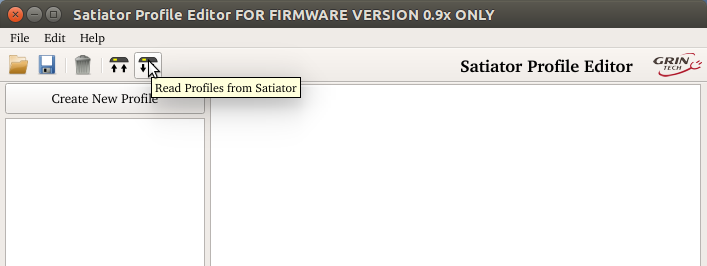
- 2. Run this v0.99 suite, and read your profiles from the Satiator
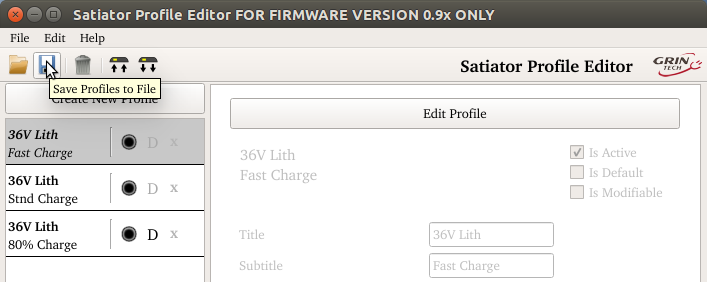
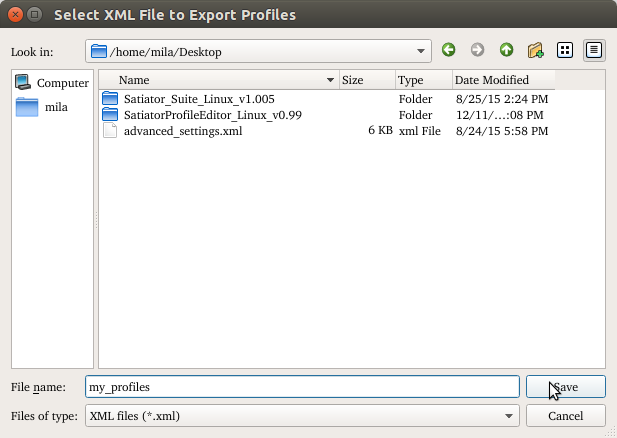
- 3. Select the save icon and save your profiles as an XML file somewhere other than the default directory, such as your desktop or your documents folder. This is in case the new install overwrites the default saved profiles folder.
- 4. Close the program
To update firmware:
- 4. Download and install the newest version of the Satiator suite (Windows, Linux, MacOS)
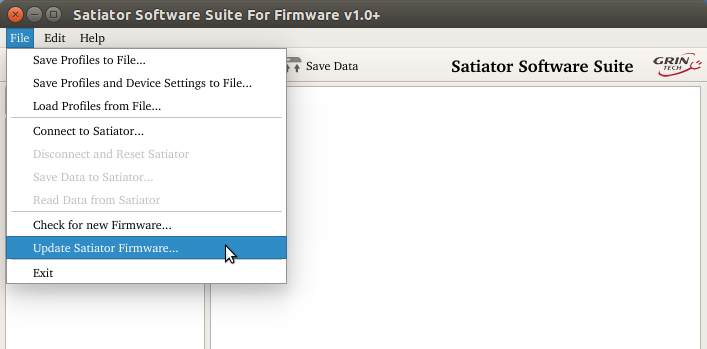
- 5. Select File→Update Satiator Firmware...
- 6. Click "Browse..." and find the included v1.005.satiator file
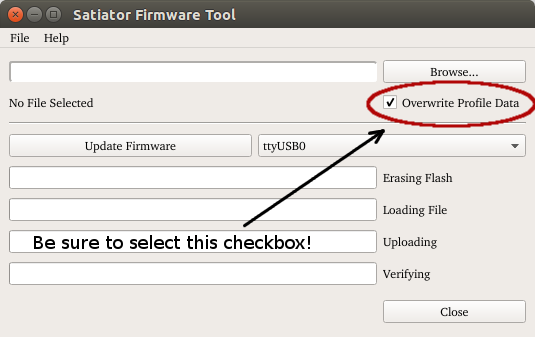
- 7. Be sure to check the "Overwrite Profile Data" checkbox
- 8. Choose the correct serial port your Satiator is connected to
- 9. Hit "Update Firmware"
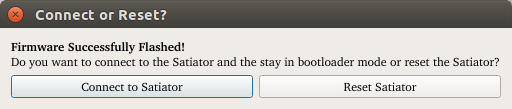
- 10. When finished successfully, select either Connect to edit profiles, or restart to use the Satiator
To restore profiles: (optional)
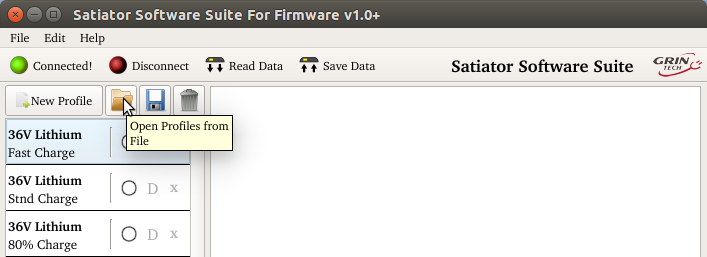
- 11. Select the open file icon and choose the saved XML file
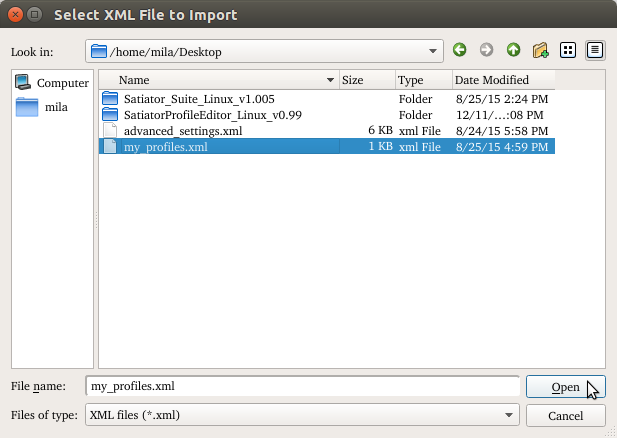
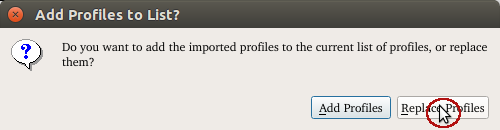
- 12. Replace the default profiles that came with the new firmware
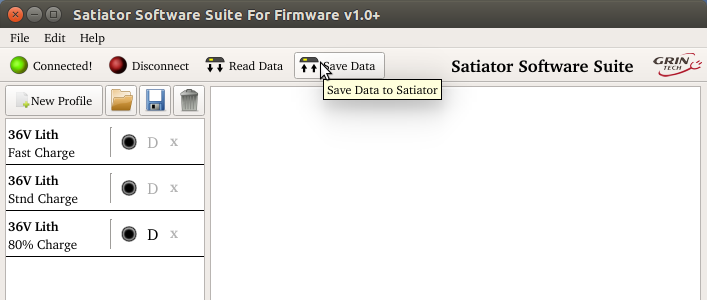
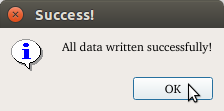
- 13. Choose Save Data, and wait for confirmation